
Manage your preferences and default settings in QandR
General settings
You can find your settings in the QandR dashboard.
Click the gear icon in the top right corner of the screen to open the settings window. Here you can manage your preferences and default options.
In your QandR settings, you can adjust a number of preferences that affect how you work and how your sessions behave by default.
For example, you can choose your interface language, select a visual style, and set default options such as whether Qboard is enabled for new projects.
You can also control interface behaviour, such as showing the dock on hover or hiding corner buttons, and manage your Presenter QR code.
These settings help you tailor QandR to your own workflow and preferences.
You can change the language that participants see during your session.
Click the gear icon in the top right corner of your dashboard to open the settings window. There, you can select your preferred language under “Default interface language”.
This setting determines the language of the participant interface during your sessions.
Please note: the facilitator dashboard itself remains in English.
Yes, the look and feel of your sessions can be customised.
QandR works with a central style that is set up for your organisation. This includes elements such as colours, logo and overall visual identity.
These style settings are not adjusted directly in the dashboard, but are configured by our team. When you start using QandR, you can share your brand guidelines, presentation template or style guide with us.
We will create an initial setup for you, which you can review in your dashboard. Based on your feedback, we can fine-tune the design to match your organisation’s look and feel.
Some settings control how the QandR interface behaves during your session.
For example, “show dock on hover” means that the control bar only becomes visible when you move your mouse over the screen. This keeps the screen clean and free of distractions for participants.
Another option is “corner buttons invisible”, which hides certain buttons on the screen to create a more minimal presentation view.
These settings allow you to adjust how much of the interface is visible, depending on your preference and the type of session you are running.
Yes, you can print or share a QR code in advance.
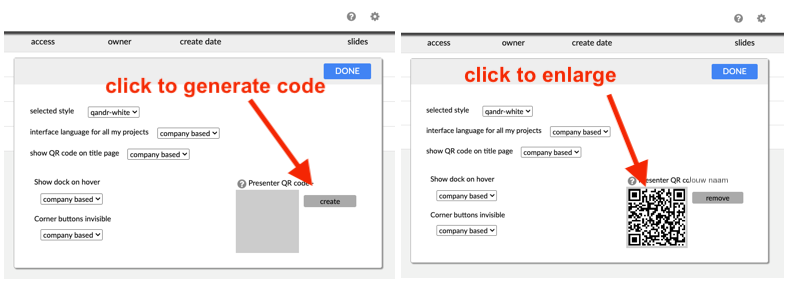
In your settings, you can generate a Presenter QR code. This is a fixed QR code that works for all sessions you start from your account.
Unlike the QR code shown on the session start screen — which changes for every session — this code can be downloaded and used beforehand. For example, you can include it in a presentation, print it on a poster, or share it in advance.
When participants scan the Presenter QR code, they are directed to your session. If no session is active yet, they will see a waiting screen. As soon as you start your session, they will automatically join.
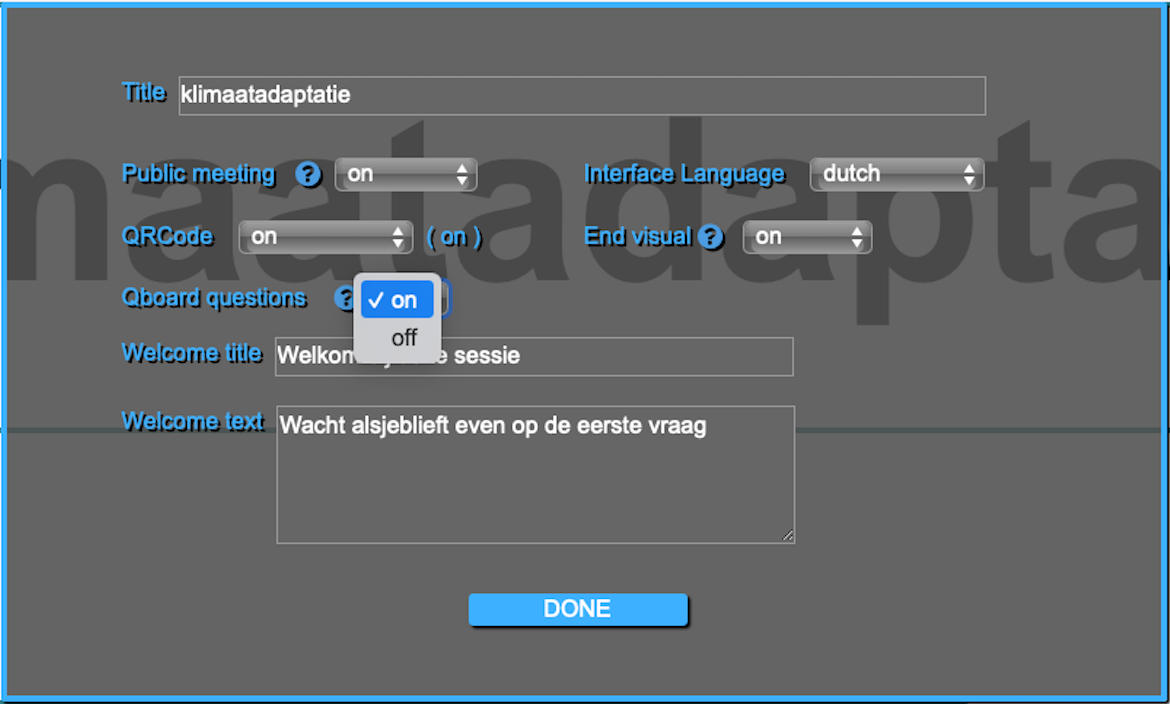
You can enable or disable Qboard in two ways.
In your user profile, you can set a default preference. If Qboard is enabled there, it will be active in new projects by default.
You can also control Qboard per presentation in the editor, on the first slide. Here you can turn it on or off depending on your needs.
For more information, click here.