
Tips and tricks for various issues, large and small
Troubleshooting
If a visual is missing from your PDF, it can usually be fixed easily.
QandR creates screenshots of slides while your session is running. This process takes a bit of time. If you move quickly between slides, it can happen that not all screenshots are captured.
You can solve this afterwards:
Open the session in the archive and go through your slides again. For each slide that is missing, press the R key to create a screenshot. You will see a small camera icon appear in the top right corner.
Once you reopen the export window, the missing visuals will be available and can be included in your PDF.
This also allows you to decide which slides you want to include in your final report.
Quite probably you clicked with your mouse on another program then your browser, and then your arrow-key are not active anymore, at least not for QandR. This happens for instance if you arrange something in your video conference program, like the way you see the video, and after that directly push the arrow key. At that moment the computer does not know that you want to move to the next slide in the browser, it think that you use the arrow key for something in the video conference program.
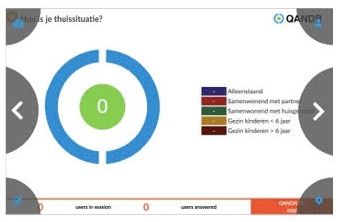 This issue is very simply resolved by click on the browser again, and the arrow keys will work again. And especially for this situation, which is typical in times of Corona, we develop also hidden navigation keys in the main screen. If you use these to navigate the browser will always be active because you’re by default clicking on it;-)
Press the reload button top left on the dashboard.
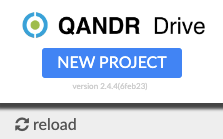
Sometimes the project list will not update immediately, even if you reload the page in your browser.
This has to do with browser caching. The reload button will then help.
If someone can’t connect, there are a few simple things you can try.
Ask the participant to refresh the page or open the link again, preferably in a modern browser such as Chrome or Safari.
If that doesn’t help, switching between Wi-Fi and mobile data can sometimes solve the issue.
In most cases, these steps are enough to get people connected quickly.
A smooth session starts with good preparation.
Always test your session at least once before going live. This ensures that all images — which can be quite large — are loaded in advance and stored in your browser and QandR cache. This helps prevent delays during your session.
It’s also important to test the participant experience. Join your own session on a phone to see how questions and interactions appear on the participant side.
If possible, run a short test with a colleague. They can give you a fresh perspective and help you check whether your questions and instructions are clear and easy to understand.
Also consider the practical setup. Make sure the internet connection at your location is stable, and consider opening your session in advance so participants can already join as they enter the room.
You can share the QR code shown on the session start screen, which is unique for each session. If you want to prepare in advance, you can also use the Presenter QR code from your dashboard. This code always works for your account and can be printed or shared beforehand.
Keeping things simple and testing in advance helps you stay focused on the conversation, instead of the technology.