
Live comments on slides, you choose when to view and address them
Work format: Qboard
Qboard is useful when you want to give your audience space to ask questions, without interrupting your presentation.
It works especially well when you have a clear story to tell, but still want to capture what is happening in the audience. Participants can submit questions in the background, while you continue presenting.
This allows you to stay in control of your flow, while still giving your audience a voice.
During your presentation, participants can submit questions or comments via their phone. These are linked to the slide that is currently on screen.
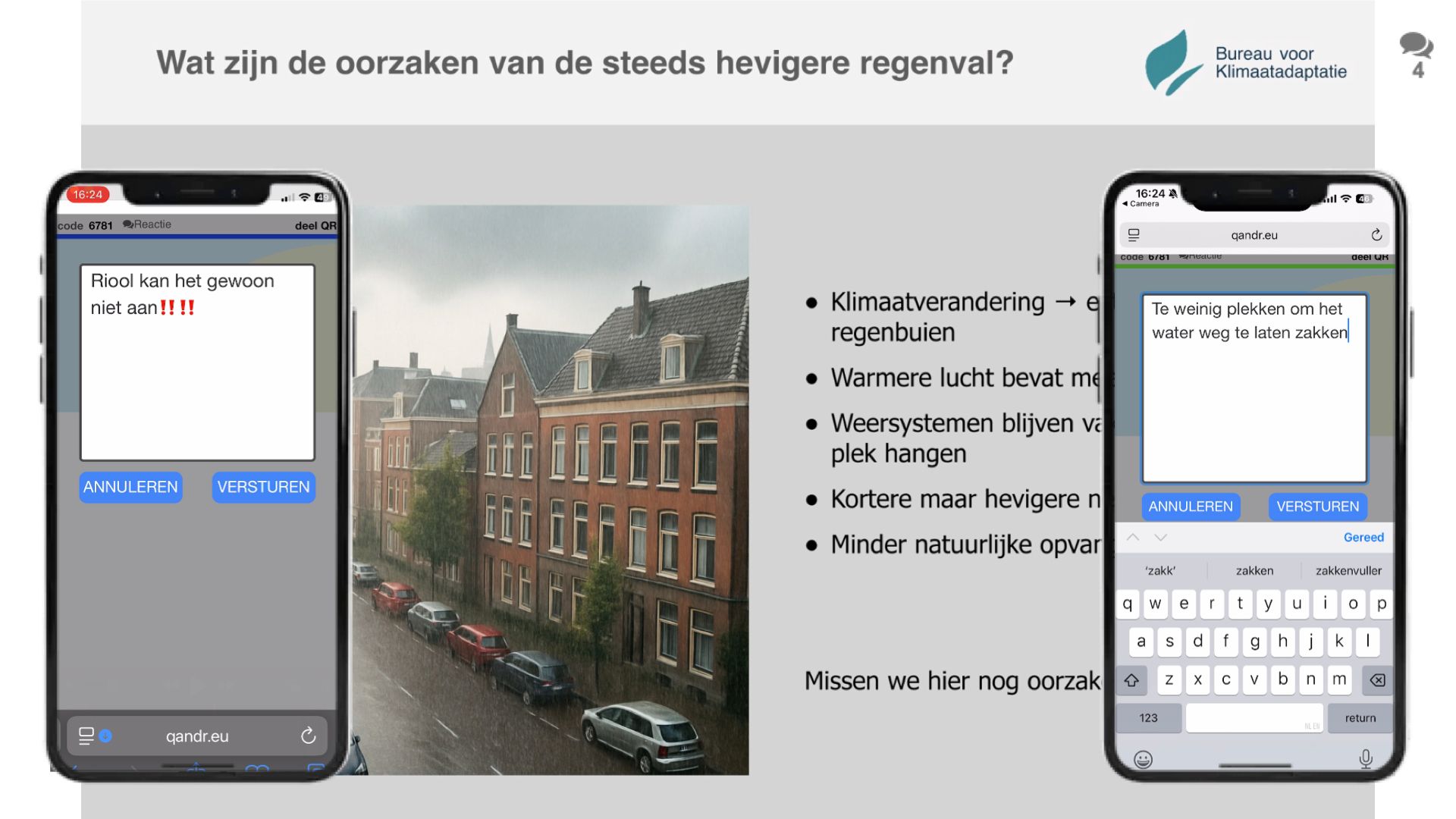
The questions remain hidden while you present. You can open them at any moment via the Qboard icon, for example to address them during or at the end of your presentation.
This allows you to collect input continuously, without interrupting your flow.
Qboard can be enabled or disabled for each project via a setting in the editor of your QandR's opening slide (see screenshot).
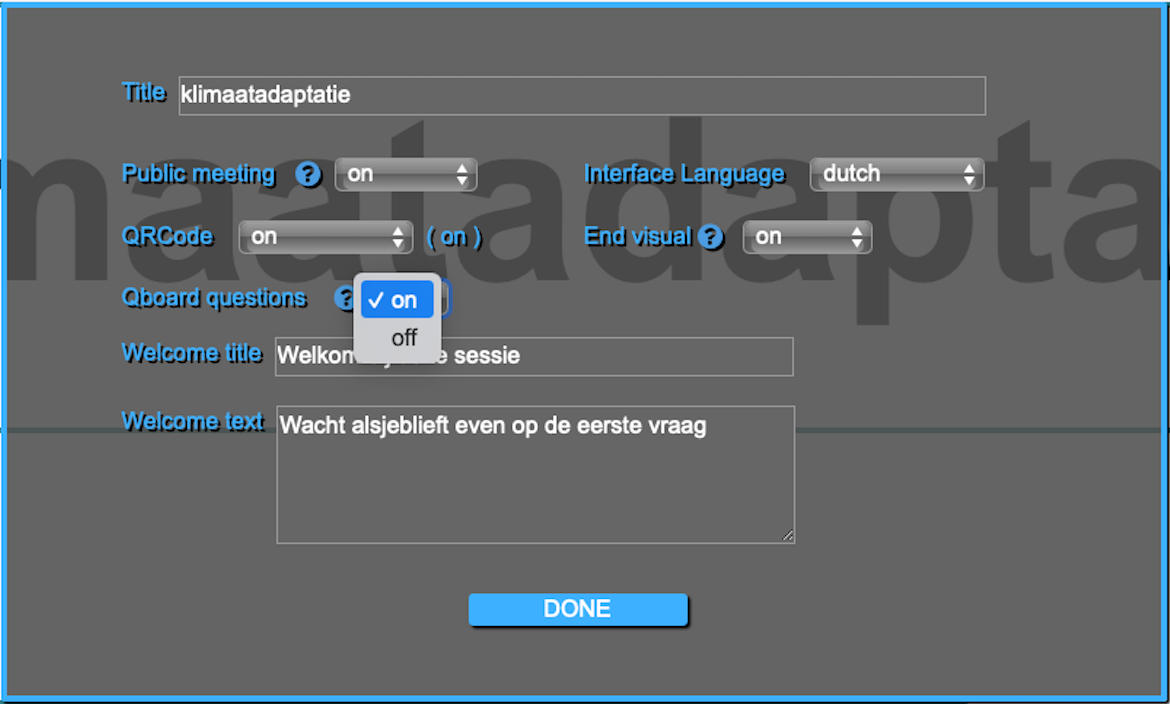
For more information, click here, or download the Qboard manual.
No, Qboard is specifically designed not to interrupt your presentation.
Participants can submit questions in the background, while you continue presenting. You decide when to view and discuss them.
This way, you stay in control of your story while still giving your audience a voice.
You can enable or disable Qboard in two ways.
In your user profile, you can set a default preference. If Qboard is enabled there, it will be active in new projects by default.
You can also control Qboard per presentation in the editor, on the first slide. Here you can turn it on or off depending on your needs.
For more information, click here.
You decide when to address questions from Qboard.
Some presenters prefer to respond during the presentation, while others collect questions and address them at the end. You can also combine both approaches.
Qboard helps you keep track of all incoming questions, so you can return to them at the right moment.
All submitted questions and comments are saved after the presentation.
They are included in the Excel export and are also integrated into the PDF report alongside the visuals of your presentation.
This allows you to review, analyze, and share the input afterwards.
At the moment, Qboard is primarily designed to work alongside Slides during a presentation. This keeps the experience clear and easy to follow for both the presenter and the audience.
We are exploring ways to use Qboard alongside other interactive formats as well. The challenge is to keep the interface simple and intuitive, without overwhelming participants.
If this is something you would find useful, we’d love to hear more about your use case.