
Use multiple choice questions as a warming-up and get a profile of your group
Work format: Poll
A Poll is ideal at the start of a session or when introducing a new topic.
It helps you quickly get a sense of the group — for example their opinions, expectations, or prior knowledge. Because multiple-choice questions are familiar to most people, participants can respond immediately without needing any explanation.
This makes Poll a natural and accessible way to get everyone involved from the beginning.
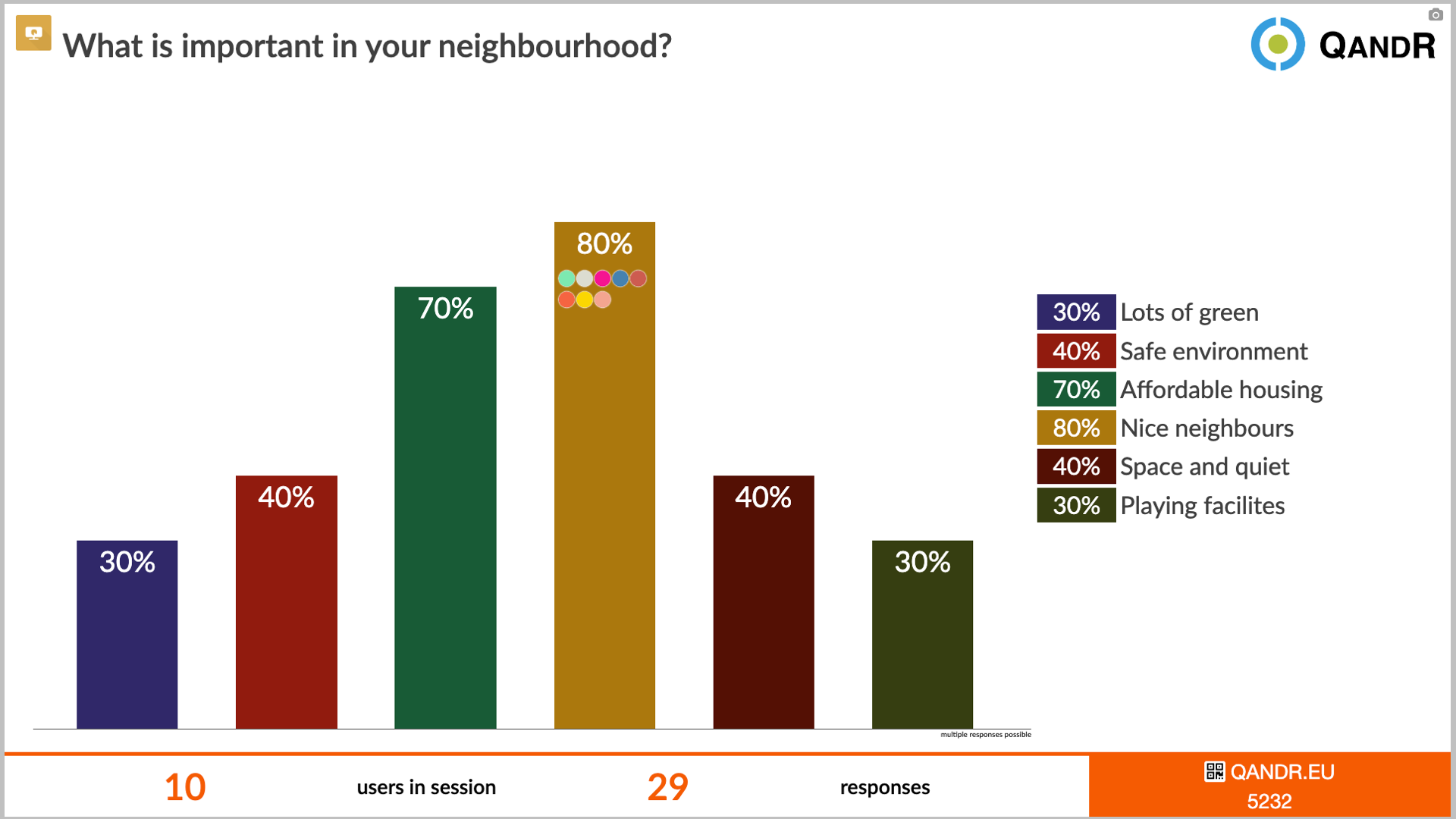
A Poll is a simple multiple-choice question that allows you to quickly collect input from a group.
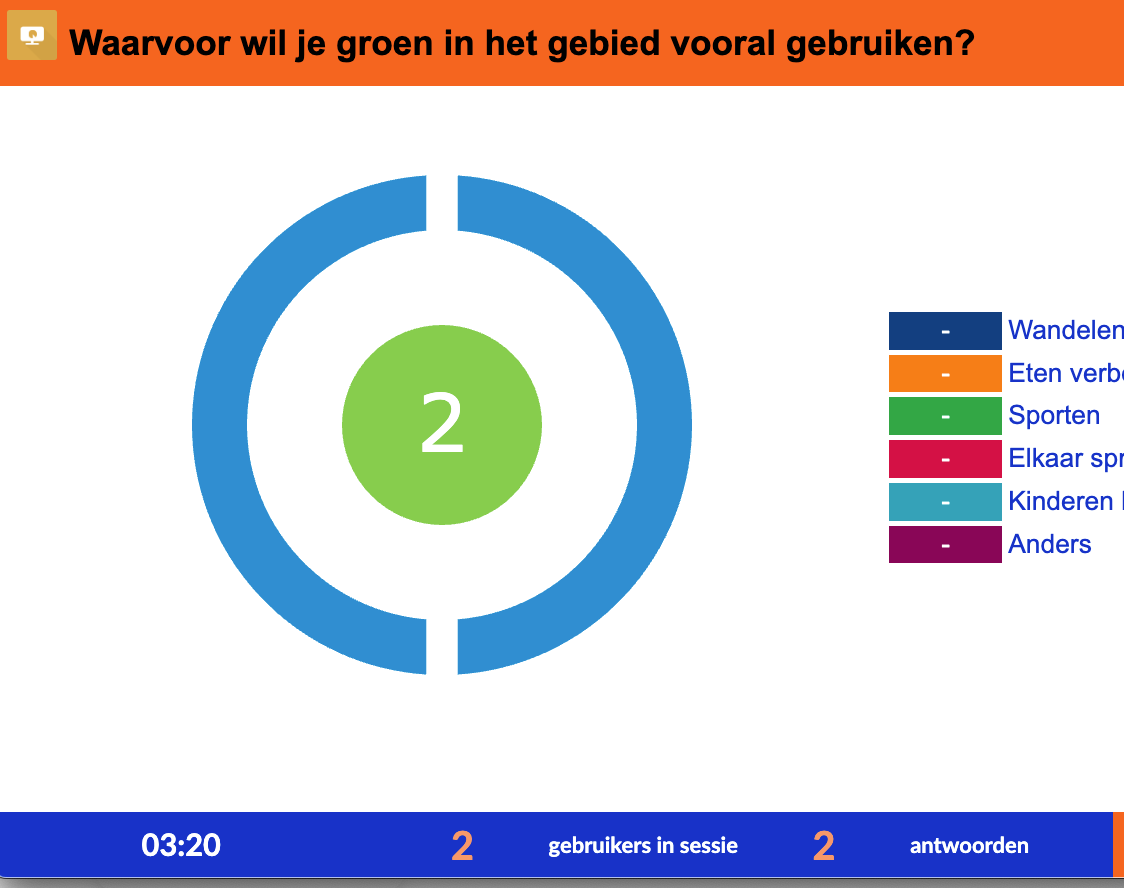
Participants answer via their phone, and the results are shown instantly on the main screen, for example as a bar chart or pie chart. This gives you an immediate overview of opinions, preferences, or expectations within the group.
Polls are often used as a low-threshold way to start a session or introduce a topic. Because the format is familiar, participants can respond right away without explanation.
This makes Poll a natural starting point for interaction and a strong foundation for further discussion.
In addition, polls offer extra features, such as setting multiple answer options, displaying results in different formats, and tailoring the question to your objective. This makes polls flexible to use and easy to adapt to your session or event. Read more.
Yes, a Poll is often a very effective way to start interaction in a session.
Because participants only need to choose between predefined options, it’s easy to understand and requires no explanation. This allows everyone to respond quickly, even in larger groups.
A Poll is especially useful when you want to get a quick sense of the group, for example their opinions, expectations, or prior knowledge, before moving into more in-depth interaction.
Polls are often used as a starting point for deeper interaction.
Once you see how the group is distributed, you can move into formats that explore differences and reasoning, such as Grading, Dilemma, or Quadrant.
In this way, Poll helps you move from quick input to more in-depth conversation
You can add up to 6 answer options to a single question.
We experimented with allowing more options, but in practice this quickly became cluttered and difficult to read on participants’ phones. That is why we intentionally chose a maximum of six answers to keep questions clear and user-friendly.
Yes, you can allow participants to select multiple answers in a Poll.
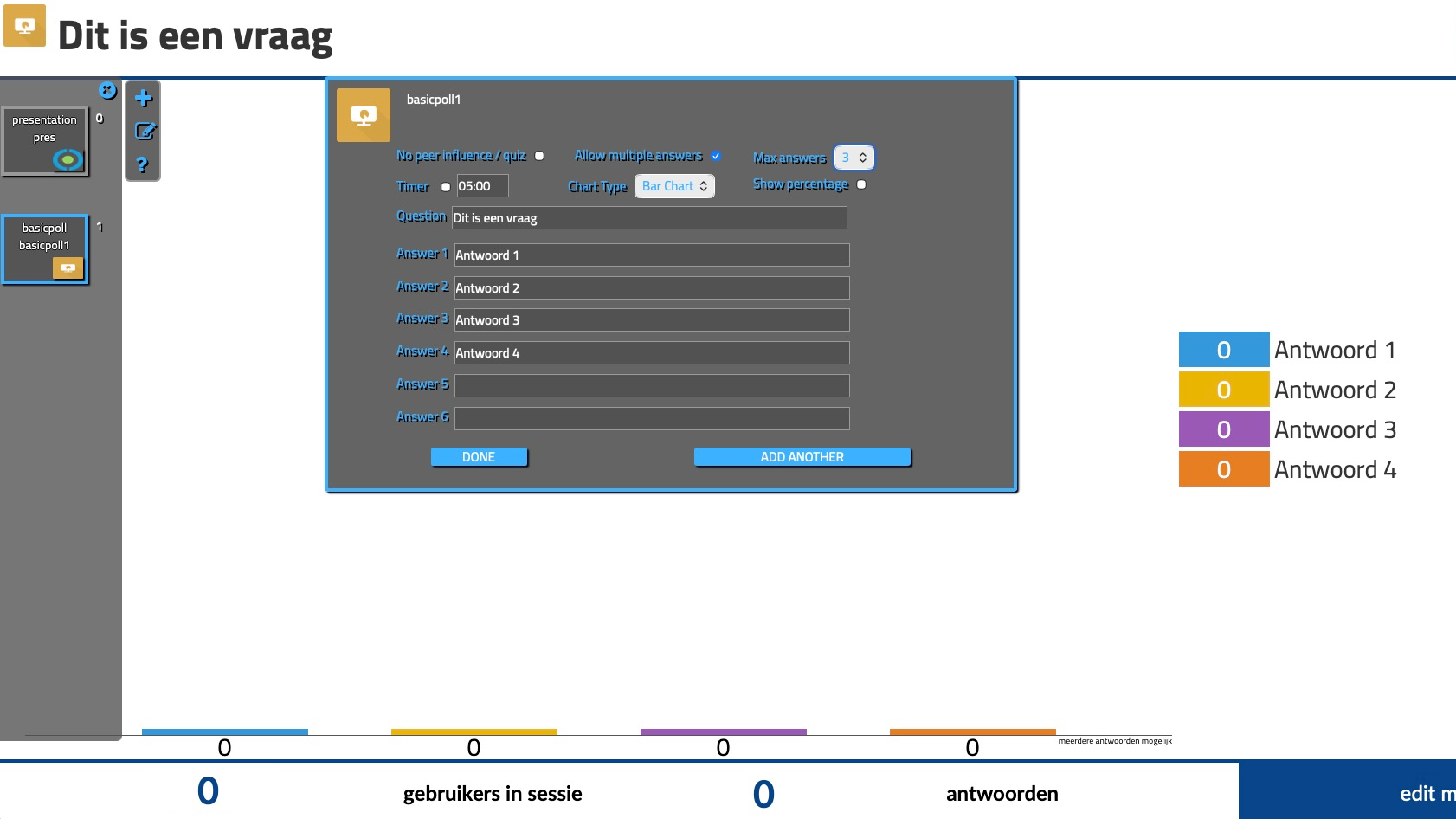
In the editor, you can enable this option and define how many answers participants are allowed to choose. This is useful when you want people to select, for example, their top 2 or top 3 options.
This setup can also be used as a simple form of ranking. For these types of questions, a bar chart is usually the clearest way to display the results.
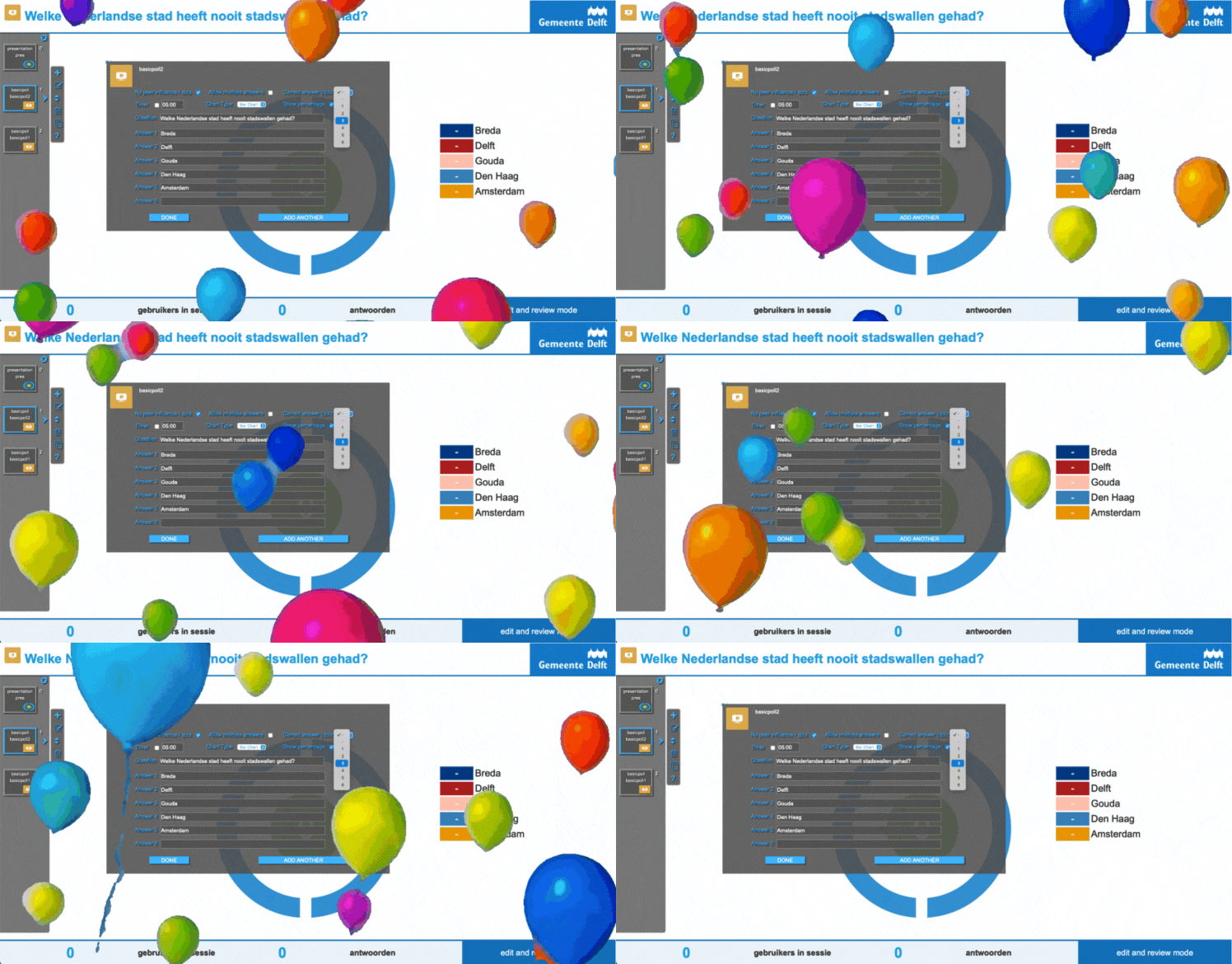
You can use a Poll as a quiz by setting a correct answer in advance.
Participants submit their answers via their phone, just like in a regular Poll. Once everyone has responded, you reveal the correct answer. Participants who selected the correct option receive a playful animation on their phone.
This adds a light, competitive element to your session and can make the interaction more engaging and memorable.
Poll-based quizzes work well when you want to activate prior knowledge, test assumptions, or introduce a topic in a playful way. QandR does not keep track of scores across multiple questions or provide a leaderboard — the focus is on interaction rather than competition.
👉 How does it work?
- In the Poll editor, if you set the question to no peer influence, you can select the correct answer via a dropdown
- During the session, when you reveal the results (spacebar), participants who chose the correct answer see a cheerful animation with balloons floating up on their phone 🎈
- On the main screen, everything remains neutral—it’s up to the group to discover who got it right!
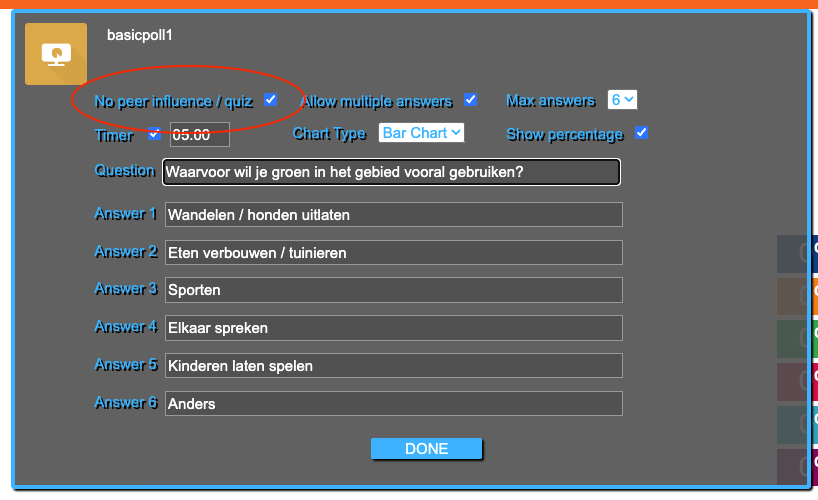
In some situations, it’s important that participants answer independently, without being influenced by others.
In QandR, you can hide the results until you choose to reveal them. Participants submit their answers as usual, but the group results are only shown once you decide to display them.
This helps you capture more honest and unbiased input before opening up the discussion.
QandR does not currently offer a built-in feature to automatically combine scores across multiple questions or themes into a single ranking. However, you can achieve a similar result using existing features.
A practical option is the a href="https://www.qandr.eu/en/modules/poll" target="_blank">Poll, where participants can select multiple answers (for example, their top 3). This naturally creates a ranking in the results, which you can optionally convert into a points system manually.
A more detailed approach is Grading, where participants rate each option per theme. This provides more nuance but requires more effort. In this case, you will need to track total scores and rankings yourself (for example, on a flip chart or in a spreadsheet).
At the moment, QandR does not support automatically grouping participants based on their Poll answers or showing results per group in other formats during a live session.
While this can be useful, it also adds complexity for both the facilitator and the participants. QandR is designed to keep interaction simple and accessible, especially in live settings.
If you want to explore differences between perspectives, you can still do this within your session. For example, by asking follow-up questions or using formats like Dilemma or Quadrant to start a conversation about differences.
If you need to analyse differences between groups in more detail, this can be done after the session. In the Excel export, responses are linked to anonymous participant IDs, allowing you to group and compare answers across questions (for example: residents vs. business owners).