
Collecting and organising ideas together — without technical barriers
Work format: Sticky Notes
Use Sticky Notes when you want to quickly collect ideas, make them visible and organise them together.
It’s ideal for brainstorming, analysis and sessions where you want to gather input from many participants and structure it as a group.
Because participants can easily submit their ideas via their phone, you quickly get a complete overview of what’s on people’s minds — without technical barriers.
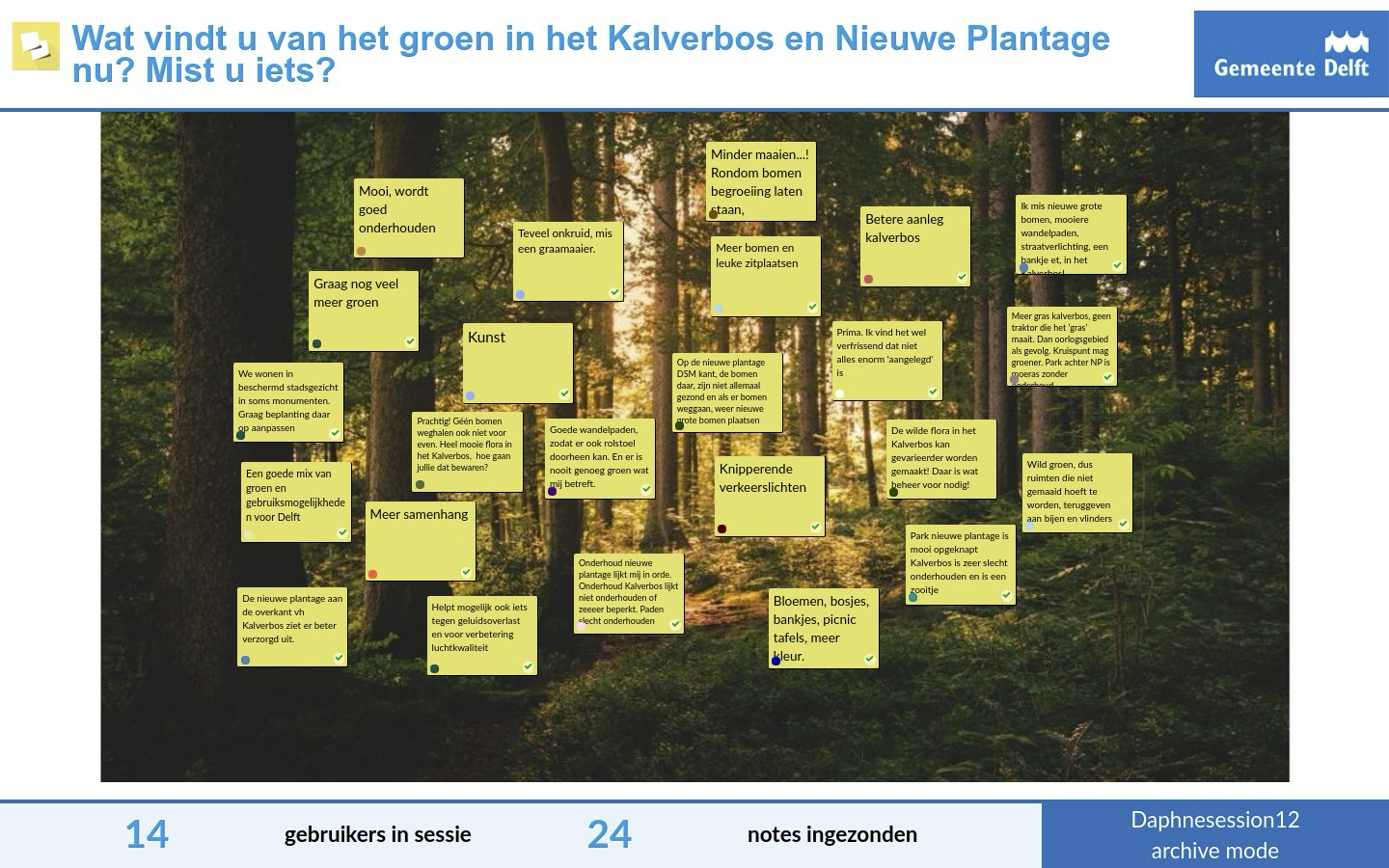
Sticky Notes are an interactive format where participants collect and share ideas using digital notes.
Participants submit their input via their phone, which appears directly on a shared canvas. This quickly creates an overview of all ideas within the group.
Because the tool is simple and intuitive, everyone can participate immediately without technical barriers. Ideas can then be discussed, moved and organised together, creating structure and shared understanding.
Sticky Notes also offer additional possibilities, such as highlighting and rating ideas, positioning them on a canvas and working with different templates or custom backgrounds. This makes it a powerful way to both collect and deepen ideas.
The strength of Sticky Notes in QandR lies in its simplicity and accessibility.
Unlike traditional mapping tools, participants don’t need to work on a shared board themselves. Instead, they can submit their ideas directly via their phone.
As a result:
- everyone can participate immediately
- no explanation is needed
- the focus stays on the conversation instead of the technology
On the main screen, a shared canvas automatically emerges with all ideas visible to the group. This allows you to collect, discuss and organise input without disrupting the flow of the session.
As a facilitator, you guide the process of collecting, positioning and structuring ideas.
A typical flow looks like this:
1. Let participants submit their ideas
2. Show the full overview on the screen
3. Discuss a few notes to clarify meaning
4. Place and group the notes together on the canvas
The key step is positioning the notes. By placing ideas in different areas of the canvas, you create structure and meaning. This can be done using a predefined template, or more informally on a blank canvas.
By guiding this process, you help the group move from a collection of ideas to shared insight and understanding.
Yes, you can highlight a specific Sticky Note and ask participants to respond to it.
When you select a note on the main screen, participants can give their feedback or rating via their phone. The results are shown immediately, including differences in opinion.
This creates a natural starting point for discussion:
- why does this idea score high or low?
- where do opinions differ?
You can use this feature when you want to go deeper into a specific idea, but it is not required for every session.
Yes, you can adapt the canvas to your topic.
In the editor, you can choose from different canvases (backgrounds), such as a SWOT analysis or a Business Model Canvas. You can also upload your own background.
The canvas determines how ideas are organised and interpreted. By choosing a structure that fits your topic, you make it easier for participants to place and understand their input.
Point Labels are smaller versions of Sticky Notes, designed for more precise positioning.
You can use them for:
- maps
- models such as circles of influence
- situations where exact placement matters
In writing mode, participants first submit their ideas, after which you as facilitator review and place them on the canvas.
In direct placement mode, participants place their notes directly on the canvas themselves.
Writing mode is useful for:
- structured sessions
- guided discussion
Direct placement is useful for:
- larger groups
- walk-in sessions
- situations where not everyone participates at the same time
Sticky Notes can become chaotic if there is no clear structure.
As a facilitator, you guide the process. Start with a clear question and work in phases: first collect ideas, then discuss and organise them.
The key is to actively position and group the notes on the canvas. By clustering similar ideas and giving them a place, you create overview and meaning.
You can use a structured canvas, but also create your own structure on a blank background. What matters most is that you guide the process and help the group make sense of the input.
The remote control is especially useful when many sticky notes are coming in at once or when you want to guide the conversation step by step. While participants are writing their notes, you can use the remote control to review incoming input, choose what to discuss, and position notes together with the group on the canvas. This helps you stay in control of the session.