
Prepare your session within a project (structure, slides and formats)
Set up your session
In QandR, you start by creating a project.
A project contains the structure of your group conversation: the slides, formats, and settings you prepare in advance. Within that project, you can then run as many sessions as you need.
To get started, go to your dashboard and click NEW PROJECT. Give your project a clear name, then open it in the project editor. There, you can add the slides and interactive formats you want to use.
Once your project is ready, you can start a session from the dashboard whenever you need it.
If you want more guidance, the onboarding will walk you through the first steps.
In QandR, interaction happens through formats (such as Poll, Wordcloud, Dilemma or Pointer).
To add one, open your project in the editor, click the plus (+), and choose a format. Each format has its own way of collecting input — from voting and positioning to open responses.
You can combine multiple formats to build your session and guide the conversation step by step.
Slides are optional and can be used to support your session, for example to introduce a topic or provide context.
A slide can be used to support your session, for example to introduce a topic, guide your story, or create a transition between interactive moments. Using slides is optional — you can also run a session fully interactively without them.
In the project editor, you can easily add a slide. Click the plus (+) button, choose Slide, and upload an image from your computer. This image will be shown full-screen during your session.
Slides in QandR are static images, which means you don’t edit their layout or content inside QandR itself. This keeps the interface simple and ensures that everything works smoothly during your session.
If you want to create a slide with text or visual design, it’s best to use a presentation tool like PowerPoint or Keynote. These tools give you full control over layout, fonts, and styling. Once your slide is ready, export it as an image (JPG or PNG) and upload it to QandR.
You can reorder slides, adjust your session flow, and combine them with interactive formats.
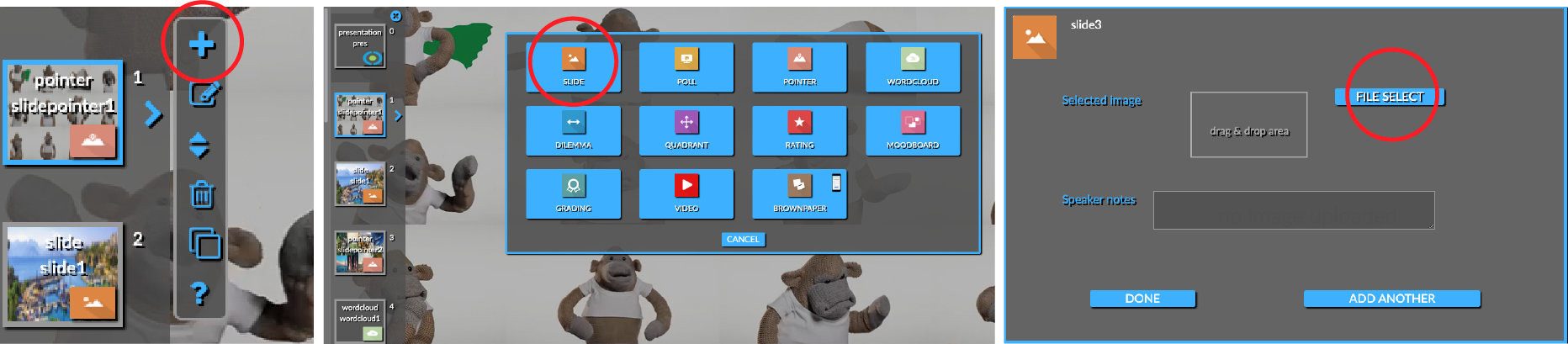
You can import multiple slides at once by uploading a full slide deck as images.
Start by exporting your presentation (for example from PowerPoint or Keynote) as individual image files (JPG or PNG). Most presentation tools allow you to export all slides in one go.
In the QandR project editor, you can then upload multiple images at the same time. Each image will be added as a separate slide in your session.
Because slides in QandR are static images, this approach ensures that your layout and design stay exactly as intended, while keeping the interface simple during your session.
You can also use Qboard alongside your slides to collect questions or comments from participants during your session.
Yes, you can combine QandR with presentation tools like PowerPoint or Keynote.
A simple way is to open your presentation and QandR in separate windows or tabs, and switch between them during your session. This allows you to keep your existing presentation while adding interactive moments with QandR.
If you prefer a more integrated setup, you can export your presentation as a PDF and upload it into your QandR project. QandR will automatically turn each page into a separate slide, so you can run your entire session from within QandR.
When you use this integrated approach, you can also use Qboard alongside your slides to collect questions or comments from participants during your session.
Copying a QandR project is simple.
In your dashboard, select the project you want to copy and click the copy icon in the top right corner. Give the new project a name, and a duplicate will be created.
This is useful when you want to reuse the structure of a session, for example for a new group or a similar session.
For more information, check the onboarding or
video tutorial.
Sharing a QandR project is simple.
In your dashboard, select the project you want to share and click the share icon in the top right corner. Then select one or more colleagues to give them access.
They will find the project in the “Shared with me” section of their QandR dashboard.
Sharing a project makes it easy to collaborate. For example, one person can prepare the session while another facilitates it. It’s also useful if you want to run multiple sessions at the same time from different accounts.
For more information, click here.
A smooth session starts with good preparation.
Always test your session at least once before going live. This ensures that all images — which can be quite large — are loaded in advance and stored in your browser and QandR cache. This helps prevent delays during your session.
It’s also important to test the participant experience. Join your own session on a phone to see how questions and interactions appear on the participant side.
If possible, run a short test with a colleague. They can give you a fresh perspective and help you check whether your questions and instructions are clear and easy to understand.
Also consider the practical setup. Make sure the internet connection at your location is stable, and consider opening your session in advance so participants can already join as they enter the room.
You can share the QR code shown on the session start screen, which is unique for each session. If you want to prepare in advance, you can also use the Presenter QR code from your dashboard. This code always works for your account and can be printed or shared beforehand.
Keeping things simple and testing in advance helps you stay focused on the conversation, instead of the technology.
Yes, it’s always a good idea to test your session before going live.
By running through your session once, you can check if everything looks and works as expected — both on the main screen and on a participant’s phone. This helps you see whether your questions are clear and your flow makes sense.
It’s best to also join your own session on a phone, and if possible, test it together with a colleague. A fresh perspective often helps to spot things you might miss yourself.
Don’t worry about the results from your test session — these are only part of that session. When you start a new session, you begin with a clean slate.